> ## Documentation Index
> Fetch the complete documentation index at: https://docs.tilt.io/llms.txt
> Use this file to discover all available pages before exploring further.
# Create an automation in chat
> Ask Tilt Agent to repeat a clear assignment on a schedule.
Create an automation from the chat where you define the work. Tilt Agent saves the assignment, schedule, timezone, target chat, and output policy together.
## 1. State the assignment and cadence
Say what to review, when to run it, which timezone to use, and when to post a result:
```text theme={null}
Every Monday at 9:00 AM America/Toronto, review my portfolio
for allocation drift, stale holdings data, and cash above target.
Post only if the review needs attention. Create the automation
in this chat.
```
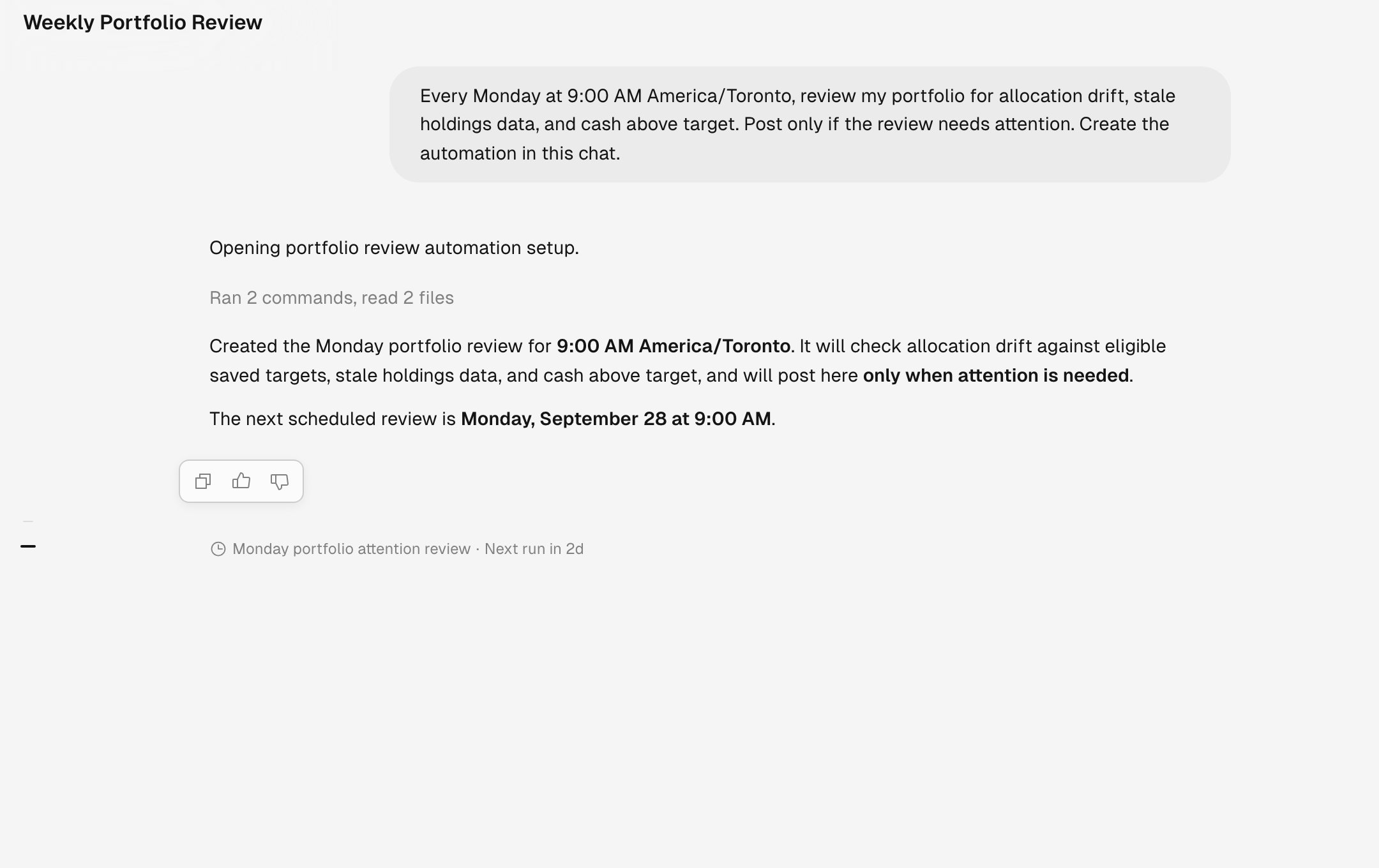 If the task, time, or timezone is ambiguous, Tilt Agent asks for the missing detail. After saving the automation, it confirms the schedule and next run.
## 2. Check the automation
Open **Automations** to inspect the saved prompt, next run, timezone, output policy, and previous runs. Use **Run now** to test the assignment before relying on its schedule.
## 3. Manage future runs
Ask Tilt Agent to change the automation in chat, or use **Edit**, **Pause**, and **Resume** on its detail page. A paused automation keeps its configuration and stops future scheduled runs until you resume it.
If the task, time, or timezone is ambiguous, Tilt Agent asks for the missing detail. After saving the automation, it confirms the schedule and next run.
## 2. Check the automation
Open **Automations** to inspect the saved prompt, next run, timezone, output policy, and previous runs. Use **Run now** to test the assignment before relying on its schedule.
## 3. Manage future runs
Ask Tilt Agent to change the automation in chat, or use **Edit**, **Pause**, and **Resume** on its detail page. A paused automation keeps its configuration and stops future scheduled runs until you resume it.