Build a model portfolio when several accounts should share a target allocation. This example uses the synthetic Aggressive Portfolio assigned to Taylor Morgan’s demo account. In the Tilt view, model portfolios are called Portfolios. Decide the sleeves and weights before saving them.

1. Describe the model

Ask Tilt Agent: “Help me define an Aggressive Portfolio with 32.5% U.S., 25% international, 17.5% emerging, 12.5% Canadian, and 12.5% global equity sleeves. Show the full allocation before saving it.” Review the proposed structure. Sleeve weights should express the allocation you intend. A sleeve can contain child sleeves; a child’s weight is relative to its parent. Ask Tilt Agent to show the full path and the weight at each level when a model has nested sleeves.
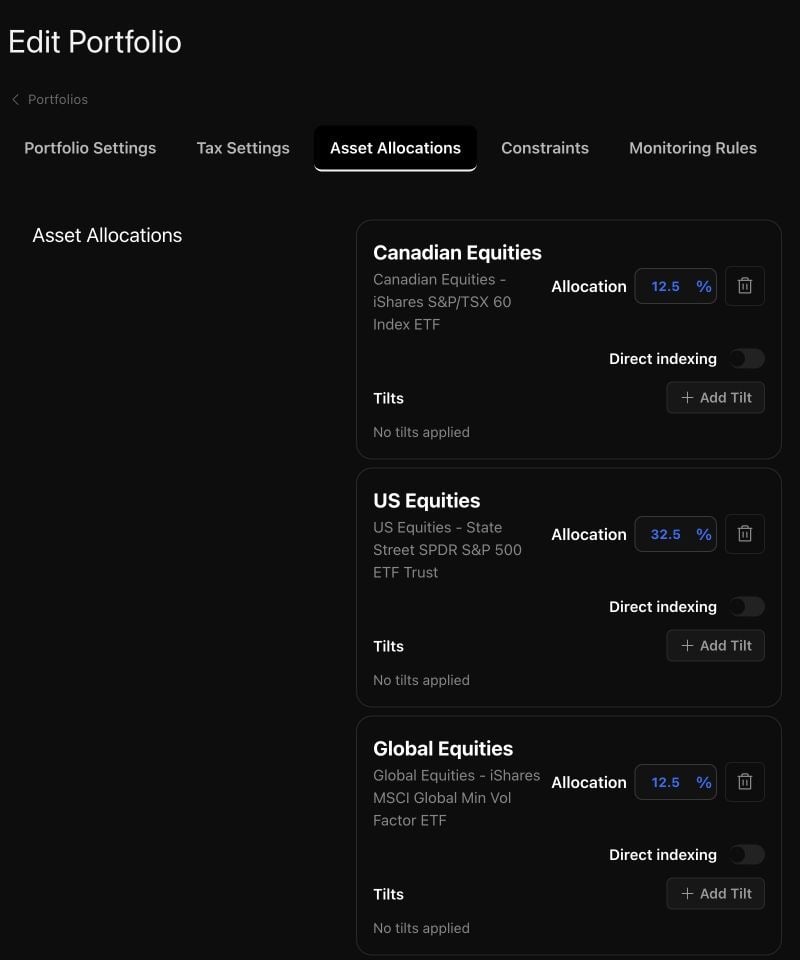
The Asset Allocations tab in the portfolio editor shows saved Canadian, U.S., and global equity sleeve weights, direct indexing controls, and Tilt controls.

The Portfolio editor shows sleeve allocations and implementation controls. The saved demo portfolio has five sleeves totaling 100%.

Tell Tilt Agent what to change in the proposed weights or sleeve membership. Confirm the complete structure when it matches your intended model, then ask to see the saved sleeve tree. This readback is the check that the model contains the weights and building blocks you approved.

2. Review implementation choices

Ask: “Show me how the U.S. Equities sleeve is implemented and which alternatives are configured.” A sleeve can use a Tilt, published Tilt index, standard index, ETF, or security. The sleeve’s target exposure and its implementation are related decisions: an alternative ETF, direct indexing choice, or substitution setting changes how the account may reach that exposure. If you want an implementation change, name the sleeve and the exact choice. Review the current setting, the proposed replacement, and which portfolios and accounts would inherit a change to a shared sleeve. Confirm only after the affected scope matches your intent. Ask Tilt Agent to read the saved setting back afterward.

3. Assign the model to an account

Ask: “Show Taylor Morgan’s account, its current portfolio assignment, and what would change if I assigned Aggressive Portfolio. Do not save it yet.” Check that Tilt Agent has the intended client and account. Review the proposed assignment and the account’s effective allocation before confirming it. After confirmation, ask: “Show Taylor Morgan’s saved portfolio assignment and effective sleeve weights.” The assigned portfolio supplies allocation membership and weights. In the Tilt view, open Clients, select Taylor, and check Optimization → Selected Portfolio to verify the assignment. Account-level settings can tailor implementation without turning the account into a separate copy of the model. You can tailor the account and then check readiness and review a rebalance. Saving or assigning a model does not itself submit an optimization or place trades.