A dashboard is a saved view that runs again when you open it, so it shows current data each time. This guide builds a read-only Market Session Checklist. Each run checks the time against the regular US-equities weekday session.

1. Ask for a dashboard

Select New dashboard in Library > Dashboards to start a request in chat, or ask Tilt Agent directly. Describe the changing data, the sections you need, and what the dashboard must not do.
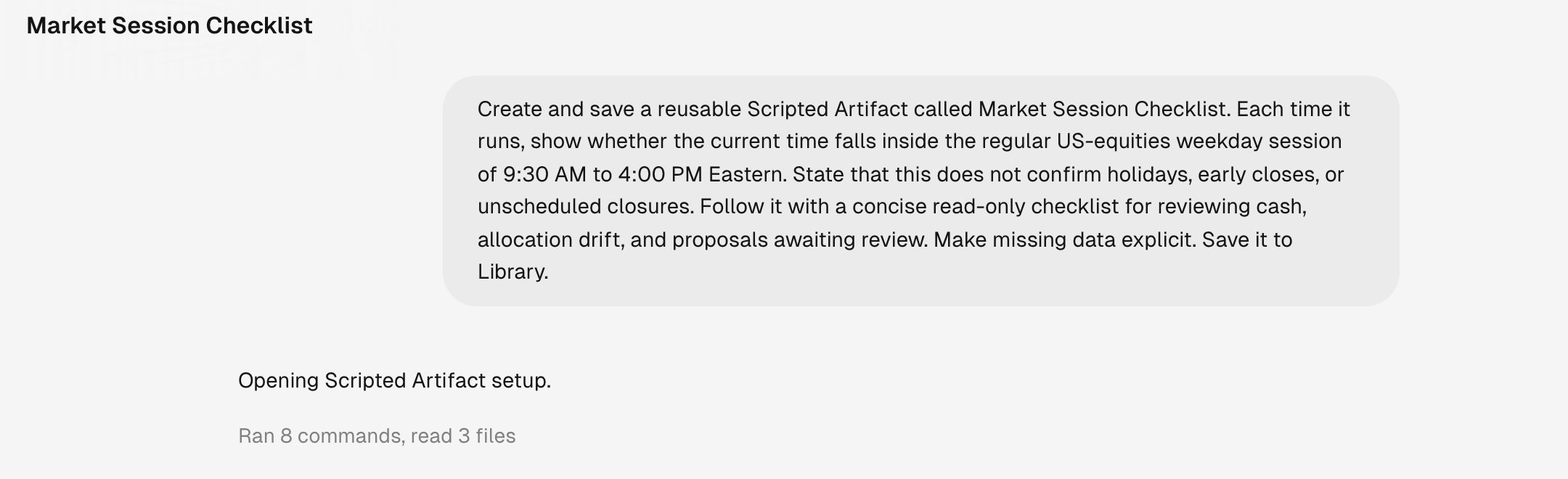
A chat request asking Tilt Agent to create and save a Market Session Checklist with a regular-session calculation and read-only review checks

The request names the dashboard, the session-window calculation, and its limits.

Tilt Agent builds the dashboard, runs it, and checks its output before saving it. Wait for the confirmation that it was saved to Library.

2. Review the dashboard

Open the dashboard from the chat or from Library > Dashboards. Each card shows a one-line description and when the dashboard last refreshed.
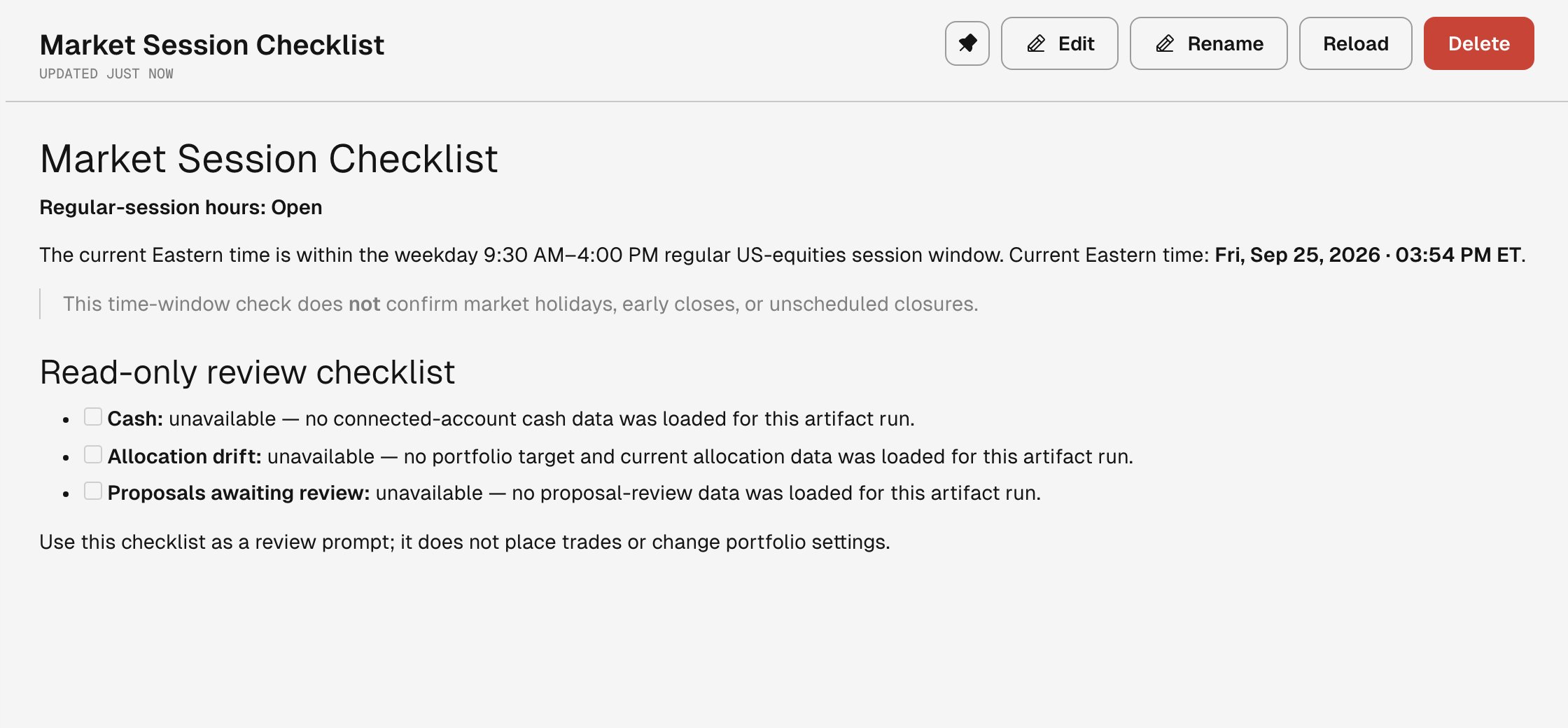
Market Session Checklist dashboard showing the regular US-equities session window and read-only checks for cash, allocation drift, and proposals awaiting review

The saved dashboard reports the current market window and labels unavailable portfolio data.

The example has no connected portfolio data, so it labels each unavailable input instead of inventing a result.

3. Open it again

Opening a dashboard runs it again. If it ran in the last few minutes, the header shows how old the data is; select Reload to run it now. Use Edit to ask Tilt Agent to change the dashboard, or Rename to change its title. Ask for another dashboard when the new view answers a different question. Keep each dashboard focused on one recurring question.

Starters

Library > Dashboards also lists starters: ready-made dashboards that fit your account, such as Advisor Dashboard in an organization you advise. Select Open to add your copy. A starter leaves the list once you have opened it.